
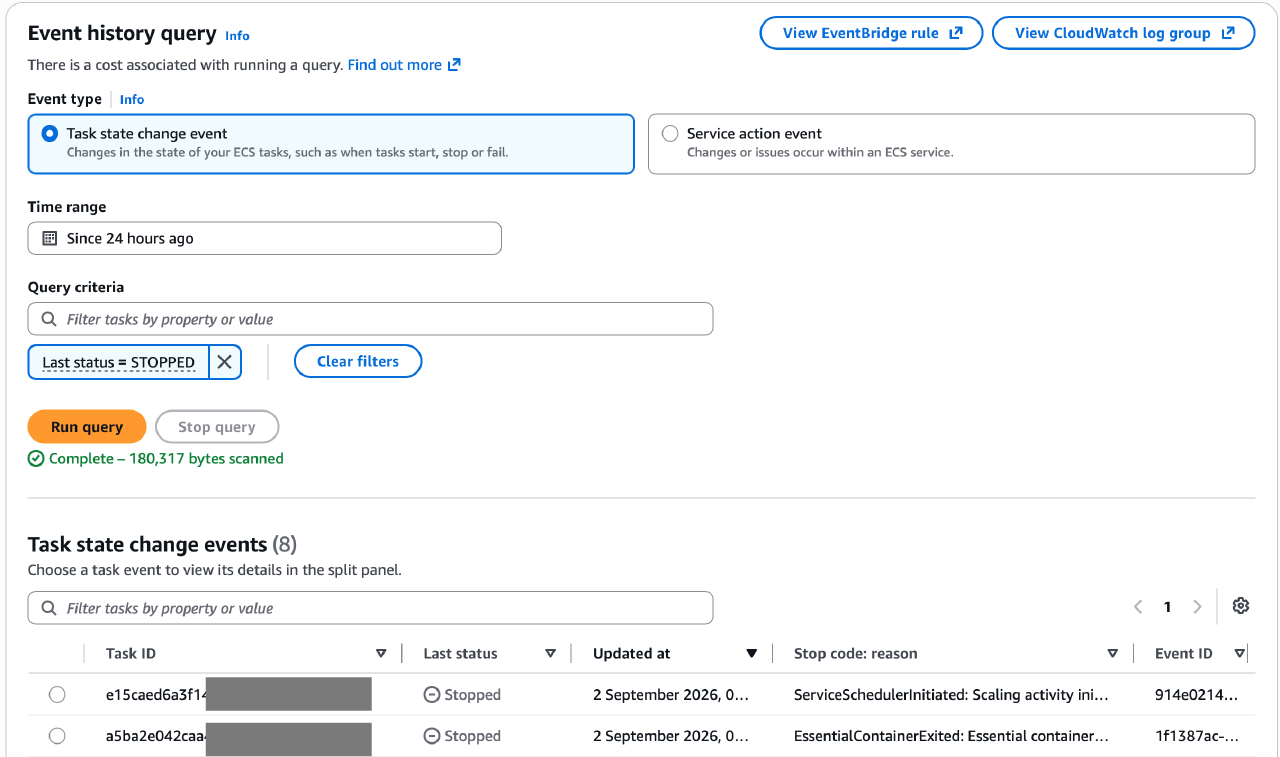
The Amazon ECS console has an Event history tab on every cluster. It shows the events ECS generated for that cluster (task state changes, service actions, deployment state changes) for as long as you choose to keep them, instead of the last 100 events or the one hour ECS keeps stopped tasks for. It’s a useful troubleshooting tool. The catch is how you turn it on: a “Turn on event capture” button in the console, which you need to press separately for every cluster. There’s no API call, no CLI command and no CloudFormation resource for it. You can create the underlying resources yourself, and events do get captured, but the console still tells you event capture isn’t configured. The reason is the name of the EventBridge rule. This post explains what the console checks for and shares a small CloudFormation custom resource that computes that name for you.
What event capture is
AWS added event capture to the ECS console in October 2025. ECS already publishes its events to EventBridge: task state changes, service actions, service deployment state changes and container instance state changes. Unless you route them somewhere yourself, they’re gone as soon as they’re emitted. Event capture routes them into a CloudWatch Logs log group, and the console adds a query interface on top: time range, task ID, deployment ID, filters for stop codes and container exit codes, and events correlated into a task’s lifecycle.
The documentation is open about what the button creates:
- a CloudWatch Logs log group named
/aws/events/ecs/containerinsights/${clusterName}/performance, with the retention period you pick (1 day to 10 years, 7 days by default), - an EventBridge rule that sends the cluster’s events from the
aws.ecssource to that log group.
That’s the whole feature. It’s ordinary EventBridge and CloudWatch Logs, and it’s billed as such: EventBridge ingestion, log storage, and Logs Insights queries when you use the tab.
What’s missing
There’s nothing in the ECS API for it. The cluster settings don’t include it, and there’s no property for it
on AWS::ECS::Cluster. The CDK team has an
open feature request for it, labelled needs-cfn, which
tells you where it’s stuck. So the only official way is the button, once per cluster, in every account and
region you run ECS in.
That’s fine for one cluster. It isn’t fine if you manage clusters with infrastructure as code, because every new cluster needs someone to remember the button, and the resulting rule and log group live outside your stacks.
Why your own rule doesn’t count
The obvious fix is to create the same two resources yourself. That works, in the sense that the events land in the log group and you can query them in CloudWatch Logs. However, the console still shows the “Turn on event capture” prompt instead of the Event history tab. The console doesn’t look for any rule that delivers to the log group. It looks for a rule with one specific name, and that name isn’t documented anywhere.
We checked what the button creates. The rule name has this form:
EventsToLogs-<cluster name>-<suffix>The suffix is the SHA-256 hash of the cluster ARN, encoded in base58 (the Bitcoin alphabet, without 0,
O, I and l). One detail matters if you re-implement this: the hash is taken over the JSON string form of
the ARN, so the ARN wrapped in double quotes, as JavaScript’s JSON.stringify produces it. The cluster name
is then cut short so that the whole name fits into 64 characters, the limit for an EventBridge rule name.
The suffix takes up 43 or 44 of those, so only the first six or seven characters of the cluster name
survive.
For a cluster called production in account 123456789012 in eu-west-1, the console expects:
EventsToLogs-produc-5RwrqALH6j17tcYiMaxhU1RTHexUxVZDQYDXJVkNNkXvCloudFormation can’t compute this. Fn::Sub and Fn::Join can build the prefix, but there’s no hash
function and no base58 encoder in the template language, so the name has to come from outside the template.
A Lambda-backed custom resource is the standard way to do that.
The custom resource
We published the code on GitHub: MysteriousCode/cloudformation-ecs-event-capture (MIT licence). It’s three files:
template.yamlis the custom resource itself: a Lambda function (Python, standard library only, no dependencies), its execution role and its log group. It exports the function ARN under the nameecs-events-rule-name.lambda/custom_ecs_events_rule_name.pyis the function. It takes aClusterArnproperty and returns aRuleNameattribute. Create and Update compute the name, Delete does nothing, because the resource doesn’t manage anything real. Bad input fails the stack straight away with the reason.example.yamlis a working event capture stack for an existing cluster.
The core of the function is short:
1suffix = base58_encode(hashlib.sha256(json.dumps(cluster_arn).encode()).digest())
2prefix = f"EventsToLogs-{cluster_name}"[: 64 - len(suffix) - 1]
3return f"{prefix}-{suffix}"
The function also runs standalone, so you can check what name the console would use for any cluster without deploying anything:
python3 lambda/custom_ecs_events_rule_name.py arn:aws:ecs:eu-west-1:123456789012:cluster/productionDeploy the custom resource once per account and region. The template references the Lambda source as a directory, so package it first (this needs an S3 bucket for the packaged code):
aws cloudformation package \
  --template-file template.yaml \
  --s3-bucket <your-templates-bucket> \
  --output-template-file packaged.yaml

aws cloudformation deploy \
  --template-file packaged.yaml \
  --stack-name ecs-events-rule-name \
  --capabilities CAPABILITY_IAM
Using it in your cluster stack
With the custom resource in place, event capture for a cluster is three resources: the log group, the name
lookup and the rule. This is example.yaml from the repository. It assumes Cluster is a parameter with the
cluster’s name.
ClusterEventsRuleName resource and skip the rule name. 1 ClusterEventsLogGroup:
2 Type: AWS::Logs::LogGroup
3 DeletionPolicy: Delete
4 UpdateReplacePolicy: Delete
5 Properties:
6 LogGroupName: !Sub "/aws/events/ecs/containerinsights/${Cluster}/performance"
7 RetentionInDays: 90 # <- adjust as per your log retention policy
8 ResourcePolicyDocument:
9 Version: "2012-10-17"
10 Statement:
11 - Sid: EventBridgeToCloudWatchLogs
12 Effect: Allow
13 Principal:
14 Service: events.amazonaws.com
15 Action:
16 - logs:CreateLogStream
17 - logs:PutLogEvents
18 Resource: !Sub "arn:aws:logs:${AWS::Region}:${AWS::AccountId}:log-group:/aws/events/ecs/containerinsights/${Cluster}/performance:*"
19 Condition:
20 StringEquals:
21 "aws:SourceAccount": !Ref "AWS::AccountId"
22 ArnLike:
23 "aws:SourceArn": !Sub "arn:aws:events:${AWS::Region}:${AWS::AccountId}:rule/*"
24
25 ClusterEventsRuleName:
26 Type: Custom::EcsEventsRuleName
27 Properties:
28 ServiceToken: !ImportValue ecs-events-rule-name
29 ClusterArn: !Sub "arn:aws:ecs:${AWS::Region}:${AWS::AccountId}:cluster/${Cluster}"
30
31 ClusterEventsRule:
32 Type: AWS::Events::Rule
33 Properties:
34 Name: !GetAtt ClusterEventsRuleName.RuleName
35 Description: !Ref "AWS::StackName"
36 EventPattern:
37 source:
38 - "aws.ecs"
39 region:
40 - !Ref "AWS::Region"
41 detail:
42 clusterArn:
43 - !Sub "arn:aws:ecs:${AWS::Region}:${AWS::AccountId}:cluster/${Cluster}"
44 State: ENABLED
45 Targets:
46 - Arn: !Sub "arn:aws:logs:${AWS::Region}:${AWS::AccountId}:log-group:${ClusterEventsLogGroup}"
47 Id: logsThe log group name follows the console’s convention, so the tab finds the logs where it expects them. The permission that lets EventBridge write to the group sits on the log group itself, as a resource policy. That keeps it out of the account-level CloudWatch Logs resource policies, which are limited to 10 per region.
Deploy it and open the cluster in the console. The Event history tab is there, with the events your cluster generated since the rule was created.
Things to know before you deploy
- If someone already pressed the button on a cluster, its rule and log group exist under exactly these names, and the deployment fails on the name collision. Turn event capture off in the console first (that deletes the rule, not the log group), then delete the log group or import both into the stack.
- Changing an existing rule’s name is a replacement. CloudFormation creates the new rule before it deletes the old one, so events are delivered twice for a short while. That’s harmless here.
- Service deployment state change events don’t carry
detail.clusterArn, so a rule matched on the cluster ARN doesn’t capture them. The console’s own rule has the same pattern and the same gap. - It costs money. Like the console version, this is standard EventBridge and CloudWatch Logs pricing, so set a retention that matches how far back you actually look.
- The opt-in is per cluster, just like Action Logs. The custom resource stack is deployed once per account and region, but the three resources above need to exist for every cluster you want covered.
Setting up monitoring like this is part of our DevOps and infrastructure work.


